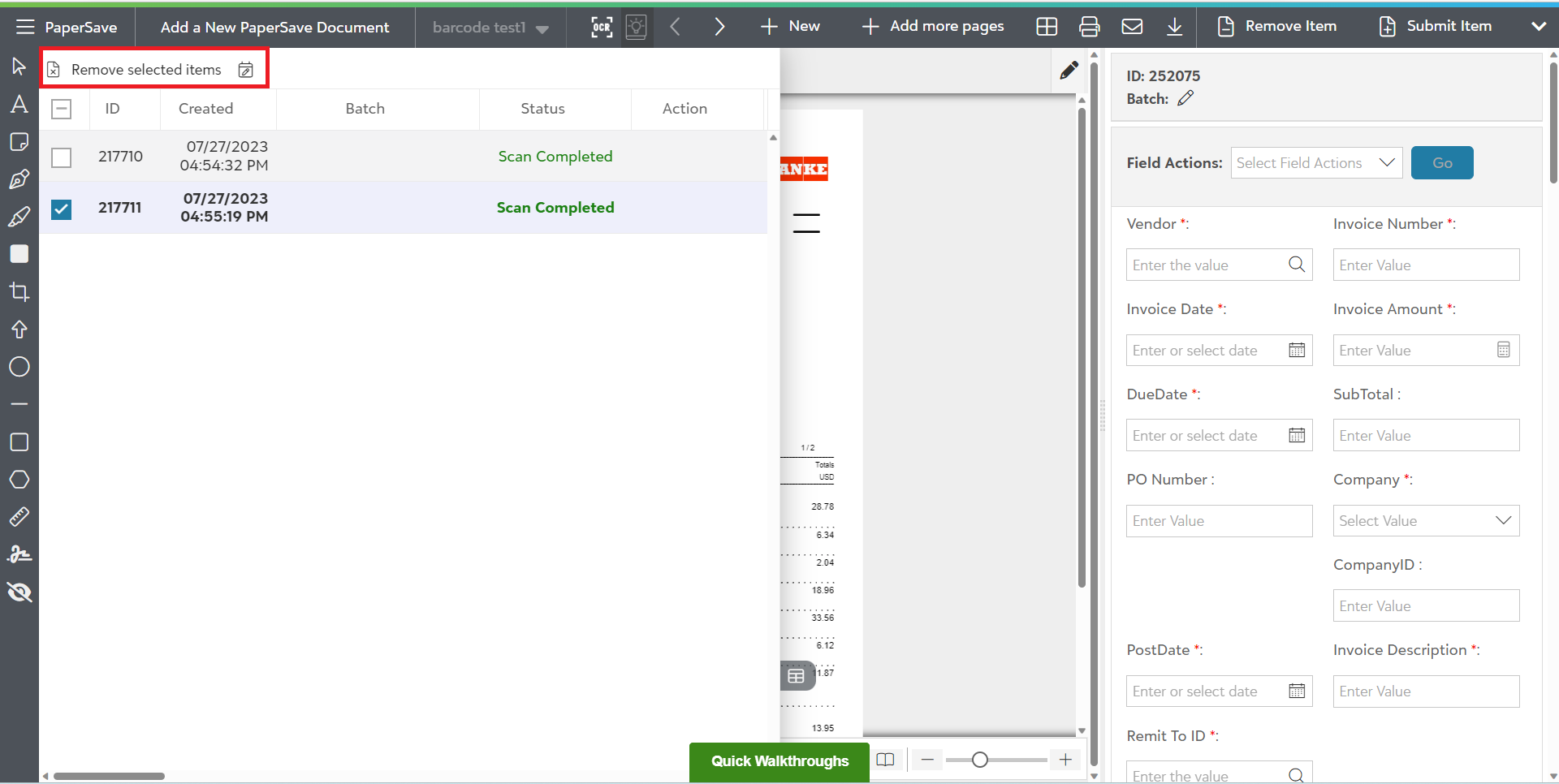
Unsubmitted Item list panel
Once you acquire the documents using any of the methods in File Capture options panel, the items can be accessed from unsubmitted items list before you submit the items. Unsubmitted item list comprises the list of Workflow items that are not yet submitted to the selected Workflow.
Watch the video to learn about the Unsubmitted Item list.
1) In the Item viewer, click on  icon to access the unsubmitted item list.

2) As you click on icon in the item viewer, a slide out panel with the list of unsubmitted items will launch in the left corner of the screen. You can see the profile field details for all the unsubmitted items as shown below.
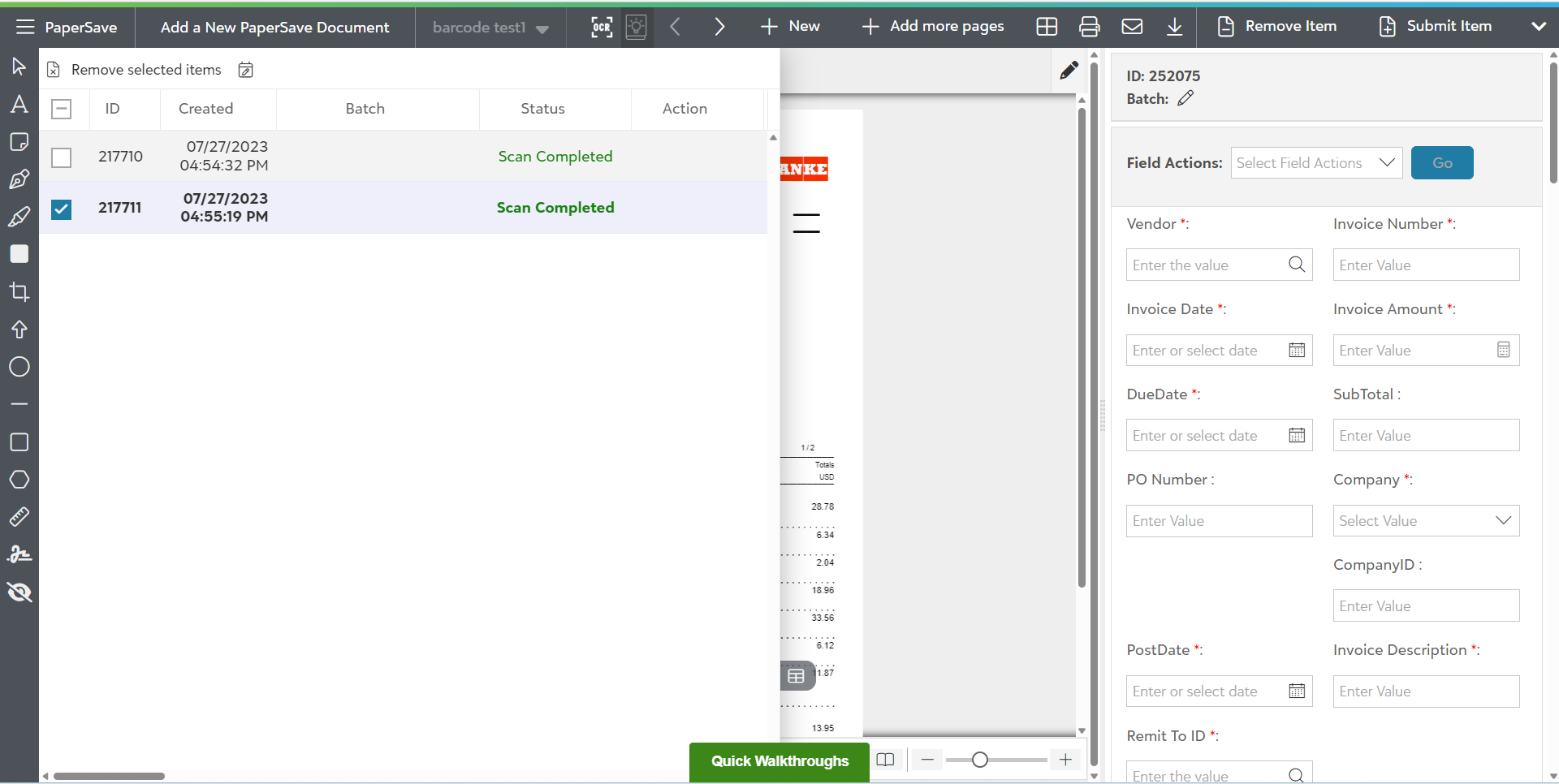
3) Double click on the desired unsubmitted item from the list to open it in the item viewer.
4) Select the items from the list that you want to discard and click on "Remove selected items" to remove them from the unsubmitted Item list.